
Mozilla’s latest version of their ever so popular browser, Firefox 3, has just be launched a couple of days ago. The D-day, which was the 17th of June, was the official release date of Firefox 3. You must’ve heard about the Firefox Pledge? If not, you can check out more about this and for those who have downloaded Firefox 3, kudos to yourself. Firefox 3 achieved more than 8 million downloads in just 24 hours. That’s more Firefox downloads than the browser ever had in a single day – an impressive feat indeed!

Firefox 3 has been discussed not too long ago, you can read it here. Looks like here in Kongtechnology.com, we are a Firefox lover! Well, personally, I love Firefox for its ease of use, customization, and speed. It definitely beats Internet Explorer. As for Safari and Opera, it’s a matter of preference. The three are on an equal ground I reckon, only difference is that there are features specific to one browser, for example, Speed Dial on Opera. Yet, my choice would still be Mozilla’s Firefox.
Along with the new Firefox 3, I’ve decided to write a practical guide to enhance your experience with Firefox. These tips and tutorials will help you browse far more efficient, faster (and not from browser speed point of view only), and not to mention the multitasking factor. With these few tips, you’ll get used to browsing multiple sites, while still running a stable browser.
Firefox Post Installation
After the initial installation of Firefox, let’s make a few tweaks. This is my personal preference though. It’s up to you whether you want to follow it or not, these steps are completely optional.
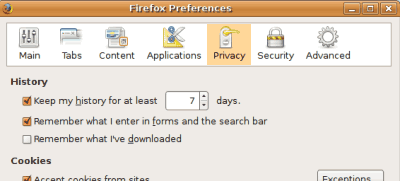
First go to Edit – Preferences. Go to Privacy tab, then under History, change the saved history page to a lower number. I changed mine to 7 days. This is to help shave some unnecessary space used by Firefox.
I also choose to disabled the “Remember what I’ve downloaded” option, for the similar reason.
That’s about it. Not much huh? Piece a cake! Of course, for a complete tweaking, there are heaps of advanced tweaking guide available. However, if you don’t feel to comfortable, then these small tweaks should do. Firefox will perform brilliantly with or without the tweaks.
Plugins Parade
Now let’s install some plugins. What are plugins? These are “extra” components that could add more features to Firefox. There are a wide range of plugins available out there, from a simple bookmarks plugins, to a more complex plugins used by web developers and programmers. However, since this article is aimed for a day-to-day user, I choose only to include the basic ones, the ones I find pretty useful for daily needs. Let’s hit it then.
- Foxmarks Bookmark Synchronizer
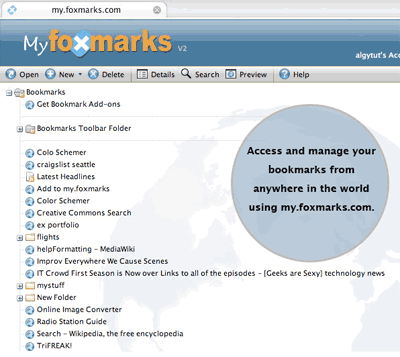
The first plugin I choose would definitely be Foxmarks. Foxmarks is a nifty plugin that lets you synchronize your bookmarks across different computers. All you need is to install Foxmarks on the other computer as well, and it will automatically update the bookmark with the one you stored in the server. Let’s say you were at work, and you found a good website for reference, you could bookmark it, sync Foxmarks, and when you got home tonight, the bookmark at home has been updated with the link you’ve included at work. Definitely handy and a must have plugin.
- Down Them All
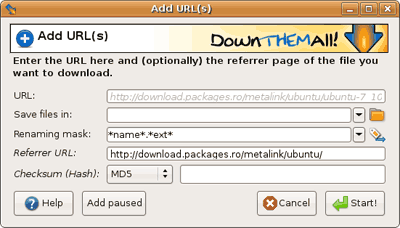
This one is useful when you want to download heaps of item on a page. Say you come across a page with 50 pics of your favorite artist, instead of right-click each and every one of them, you could just right-click once, choose to “Down Them All” and filter the downloads by file extensions (eg: JPEGs, GIFs, etc) and download them all. A real handy one for those of you who surf for pictures a lot.
- Download Status Bar
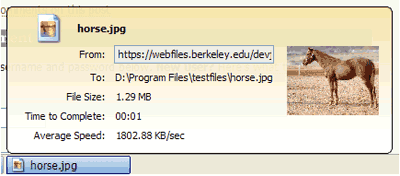
I don’t like Firefox’s default download manager. It opens up a new window, and it won’t tell you how many percentage your download has gone when there are multiple downloads. Download Status Bar does exactly what it says. It lets the download bar go onto the status bar (bottom of the browser) and it will show you graphically how far your download has gone. Plus, there’s no need of pop-up download manager window. Hooray! What’s more is that whenever you close your browser, it will switch your downloads automatically to the default pop-up window, so you don’t have to cancel your downloads.
- Orbit Downloader
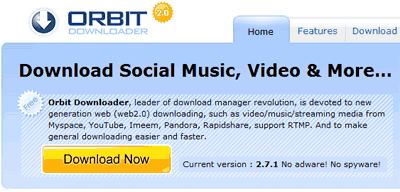
Here’s an optional one. It’s not actually a Firefox plugin, but it can integrate itself with Firefox. I use this plugin mainly for downloading flv movies (YouTube, or similar video sites) and of course, Flash based media. Great for downloading Flash games to be played offline using a standalone Flash player.
Holy crap Batman! That’s FAST!
Browsing using Firefox is about speed. Not only the browser itself, but operational as well. These shortcuts will help your browsing efficiencies: faster, and cooler (once you get used to it, you could “accidentally” demonstrate to your friends how you browse so fast).
- Ctrl – T: Opens up a new tab. Useful for multiple browsing session. Be careful not to slip and open too many tabs though.
- Ctrl – W: Close the chosen tab. Can be used to quickly close whatever tab you are looking at if your Boss suddenly come (Haha!)
- Ctrl – Shift – T: Re-open the last closed tab. Useful to re-open the tab you close above.
- Ctrl – F: Open up a “Search on this page” form. I use this to search the term / words I was looking for on a page.
- Ctrl – Tab: Move between opened tabs.
- Ctrl – Left Click on a link: Open up that link on a new tab (and keep focus on the current tab)
These are basically the main shortcuts I am using on Firefox. Not much, but each of them has been proven useful and sufficient for day-to-day use. If you do have any other shortcuts though, feel free to drop them in the comments section.
So there you go, some tips and info for those of you who hasn’t been using Firefox to the full potential. For those of you who are thinking of switching to Firefox, Kitkat’s right, it’s the time to make the switch. Firefox 3 definitely has some brand new features. Watch and subscribe to Kongtechnology for more reviews and tips on Firefox 3. Browse fast, browse smart. (Psst.. Don’t forget to download Firefox 3!)