Please subscribe to my feed.
I hear so many people complain about Windows Vista lately. I do have a few complaints about Vista myself, but overall I think it’s still a pretty good Operating System, including its bundled Disk Defragmenter which is located in System Tools, under Accessories.
Let’s start the Windows Vista Disk Defragmenter and have a look. Looks like it’s scheduled to run once every week, by default.

You can force the defragmentation to start immediately by clicking on the “Defragment now” button of course. But compare to Windows XP, there is no progress bar now. This is because the defragmentation process in Vista is non-linear unlike Windows XP’s, so there is no way to estimate accurately how much time a defrag would possibly take. Instead of trying to show estimates of how much time the defragmentation will take, the defrag team came up with a better solution: reducing the impact of defragmentation on your computer by making it use low-priority I/O and low priority CPU, so you can still use it and do what ever it is you do while the defrag is on. That’s why the whole process is scheduled to run in the background! So smart can die…
Now, many do not know you can also invoke the defrag tool from the command prompt. Check out a screen shot below.

Go to elevated command prompt by running it as an administrator. Then issue the command “defrag -c -v”. The system will defragment all the volumes on the computer in verbose mode. After the defragmentation completes, it will show detailed analysis output.
Like it or not, those are what you get on Windows Vista, Basic, Home, Business or Ultimate editions. There’s no progress bar, no indication of elapsed time, or remaining time. There’s no information on what files are fragmented, and how fragmented the hard disk is.
If you still very much fancy the good old Windows XP Disk Defragmenter, or at least shows more information, such as a progress bar, then you should use Auslogics Disk Defrag.
This is what CNET Reviews has to say about Auslogics Disk Defrag.
We found the program fast, even on older XP systems. A handy HTML report is prepared after each defrag session. … Fantastic utility far superior to Windows Disk Defragmenter.
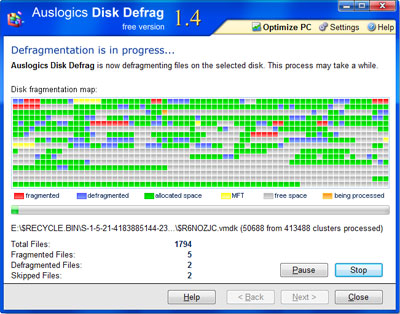
This FREE program shows you a detailed disk fragmentation map while the defragmentation is running. The map shows you disk clusters, each cluster being red (still fragmented), blue or green (already optimized), gray (free space) or yellow for clusters occupied by the Master File Table. Isn’t this more intuitive compared to Windows Vista’s Disk Defragmenter?

After the disk defragmentation is complete you get a summary of the process. What are you waiting, go download this disk defragmenter now while it’s still free.
So, there you are. I have shown you three tools to defrag your Windows Vista. Depending on your mood, you can use whichever one you like and they will certainly make your computer’s file system cleaner and more organized. Happy defragmenting!
tipster
May 2nd, 2008 at 2:17 pm
I tried Auslogics and a couple of automatic defragmenters as well. I needed something that can be installed to run automatically and also have the option for turning off the auto defrag feature (besides Boot and MFT defrags). A good interface (missing in Vista) also important. I am leaning towards Diskeeper as it seems to be working the best.
danny
April 1st, 2009 at 2:31 am
i tried defrag on my laptop and it used up 6GB. isn’t it supposed to give you back memory?
Shvingy
April 29th, 2009 at 10:19 am
Disk defragmentation pushes file clusters around making the hard drive read more efficiently
Max Johnson
May 28th, 2009 at 10:46 am
Think of a big file as a 100 page document. You could have it all in one pile, good to go. Or you could have 50 pages here, 30 pages over there, and the rest on the top of the bookshelf.
A defrag will generally put all the pieces of a file back into the one place, so the hard-drive has to work less (so it’ll be quicker) to read the data.
You shouldn’t lose or gain any hard drive space due to a defrag. Though, you’ll need a certain amount of free space to do a defrag. Think of it as a spare corner of the desk you use while you’re putting those 100 pages back in order
Tiffany
June 24th, 2009 at 8:36 am
When I type “defrag -c -v” into the Administrator: Command Prompt, it outputs “Disk Defragmenter could not start.” How can I fix this?
JonB
July 1st, 2009 at 3:33 am
Tiffany: Did you resolve this?
If not, check to see if defrag is already running.
Start Task Manager, check on the processes tab if Defrag.exe and DfrgNtse.exe are running. If so, that is the reason for the message –
Good Luck
Jennifer
August 27th, 2009 at 7:38 am
I’ve tried starting defrag in multiple ways but it says it can not start. i have tried to see if it is already running but it is not. I need to figure out why my computer is crashing and I need to run defrag.
freelintux
September 17th, 2009 at 4:13 pm
defragmentation is one good choice of maintenance tool, but it is not a diagnostic tool. Windows 2K and above has an administrative tools that logs the event/s while you were using your computer. it is called Event Viewer.
Take the Event ID of that particular error, then google for the solution.
I hope that this has been of help.
freelintux
david
February 5th, 2010 at 10:27 pm
you can download a defrag from ccleaner its better dan vistas origanal 1 and it dont take hours 2 do http://www.ccleaner.com and look for defrag
Steve
January 11th, 2011 at 5:11 am
I have given up on Diskeeper and I’d like to warn others about it. I ran it for years, ever since it came out around the time of Windows 95. For that entire time, across three different computers, I kept getting corrupted disk sectors and losing important data, including Windows files. I tried and tried to “fix” the problem with the help of HP and Dell (the first two computers I used Diskeeper on) and they even replaced my disk and disk controller/motherboard. Everything would go well for a while and then bam, corruption. And every time, there wouldn’t be any useable System Restore point. Finally, on my latest computer I got a raid array to make sure that I wouldn’t get corruption and that I could recover *IF* I did have another “bad disk” (technical support’s diagnosis). No corrupting yet but lately, I’ve had a new problem. I never have more than one System Restore point. I asked Diskeeper if their program could be causing the problem but they said that I didn’t have enough VSS storage allocated. So, upon their recommendation, I increased my “Shadow Storage” to 50gb – a ridiculous amount (vssadmin Resize ShadowStorage /On=C: /For=C: /Maxsize=50gb). But still, I would create a bunch of Restore points – 5 even 10 – and only one would be there the next day. I finally decided to disable the Diskeeper service to see what would happen. Guess what, my restore points remain just as they should – I’ve reduced my Shadow Storage to 20gb and I now have 14 points and room for more (just testing, I’m going to reduce shadow size greatly now). So, I can prove that Diskeeper destroys System Restore points and their documentation even refers to problems it has with Shadow Copies on volumes with cluster sizes below a certain size – something like 16mb – and the Vista default is 4mb. They claim that any defrag program run on a disk with “Virtual Shadow Storage” (the feature that enables System Restore) and clusters below 16mb (WAY too big for efficient storage) will have a problem with Windows creating *TOO MANY* restore points. So, they have a special feature in Diskeeper that prevents too many points from being created. I guess so – it deletes all but the last!!! I also believe that Diskeeper has caused my corruption problems for many years and across many versions of the software, Windows and computers. I can’t prove that for sure but I have come to realize, every time I rebuilt by system after a corrupted disk, I never had corruption until I got around to reinstalling Diskeeper. As of today, I am never running Diskeeper again.
claudette summers
August 20th, 2011 at 9:50 pm
Why is there no defragmentation already programmed in acer, Vista — How do they expect you to keep your computer balanced?