
A popular form of web media today is interactivity Flash. Flash not only allows you to add interactivity into otherwise static and boring websites, it also allows web designers and programmers to express unlimited creativity in creating Flash games, or other forms of interesting gadgets. Flash is very common these days because almost all computers in the world has the Flash player installed.
A couple of months ago, I started playing with Flash 8 because I would like to make my very own flash game of my dream. Sadly, I learned that Flash is not easy to use. However, I’ll share all my knowledge with you as much as I can. We’re going to start off simple. Today, we’re going to learn how to move our character with the arrow keys, while playing a different animation when a certain key is pressed using Actionscript.
Before we start, here are some key terms to know:
- Actionscript
Flash’s programing language. - Blank Key Frame
A frame that has nothing in it. - Frame
A placeholder for movie clips, actionscript codes, etc. - Instance Name
The name of a movie clip. This name is used so Actionscript can recognize the object. - Key Frame
A frame that has something in it. - Movie Clip
Objects in flash. Movie Clips often have a timeline inside itself. - Timeline
Basically the area on the screen where you will be working with layers and frames to alter your movie’s content and animation.
Oh yeah, before we start this tutorial, I would like to recommend Actionscript: The Definitive Guide by Colin Moock. Although the book is some what old and it doesn’t talk about Actionscript 3, it’s a great book to pick up if you’re a flash newbie like me.
Let’s start making some animation… follow tight.
1) Start Macromedia Flash
Probably will be the easiest thing to do in this tutorial. Simply double click on the Flash program icon on your desktop to run the program. Good job!
2) Check
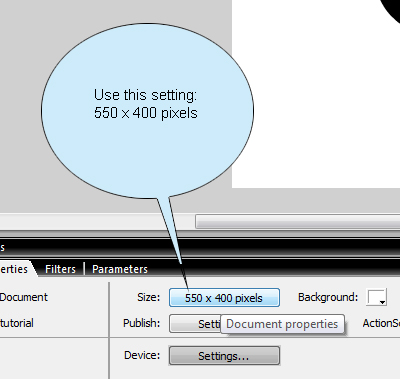
For this tutorial, our document size will be 550px (pixels) by 400px. If your document isn’t this size, simply open the properties bar located at the bottom, and click on the size button.
3) Create our character
Okay, time to create your star! Draw any kind of shape! Any kind! For this tutorial, I used a circle shape.
4) Create a movie clip!
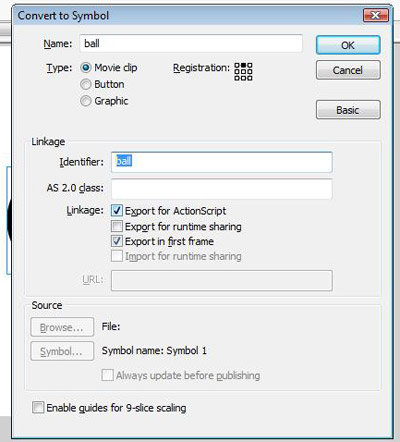
Okay, now that you have created your character, time to change it to a movie clip. To change it into a movie clip, simple click on the object, and press F8 on your keyboard (if you can’t find it on your keyboard, then simply go to Modify, then Convert to Symbol in the upper tool bar). In name text field, fill in any name you think you’ll remember the object as. If you looked at the picture above, then you’ll see that I have selected “Export for Actionscript”. You don’t have to do this! This is an extra precaution I take to make sure nothing messes up. Press OK when you’re done.
5) Instance naming
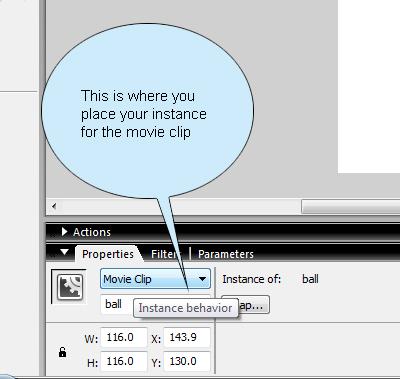
If you’re a safety nut like me, then you will want to make sure nothing goes wrong! One way to make sure is to fill the movie clip’s instance name. To fill in the instance name, click on the movie clip, open the properties bar in the bottom, and fill in the instance name located to the far left.
6) Animation time!
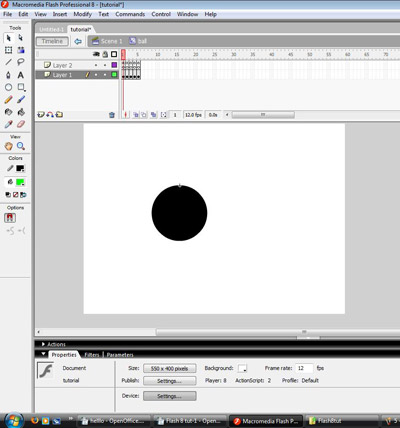
Now it’s time to “animate” your object and make it come to life. Double click on the movie clip to open the movie clip’s timeline. Yes, movie clips have their own timeline as well!
7) Create key frames
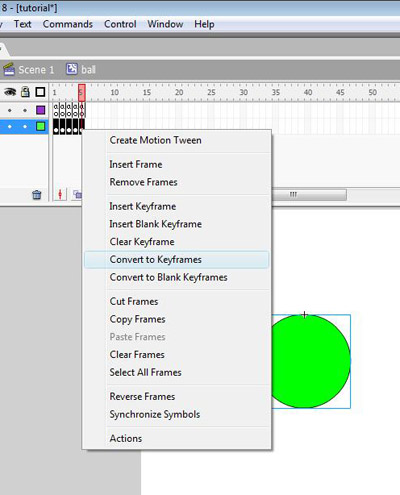
Before you start, you need to create 4 more key frames of the movie clip. Click on the second frame after the first key frame of the movie clip. Hold down the Shift key, and click on the fifth frame. By doing this, you should have selected four frames at once! Next, right click on the selected frames, and select “convert to key frames”. After this is down, you should have five key frames in total inside the movie clip!
8) Layers in movie clip
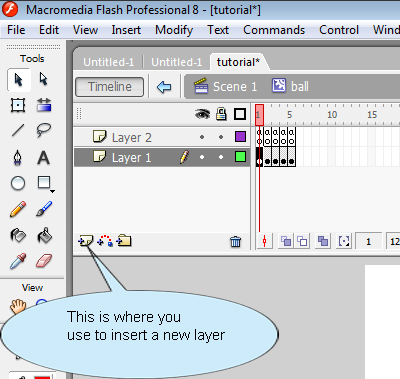
Next step is to create another layer inside the movie clip. To create another layer, click on the “Insert New Layer Button” (look at the picture to know where’s the button). If everything is done correctly, the new layer should be layered on top of the old layer. If this isn’t the case, then move the new layer on top of the old layer.
9) Blank key frames

Remember how to select multiple frames and turning them into key frames? Do that, except instead of selecting “Convert to Key Frames” when you right click the frames, select “Convert to Blank Key Frames” this time. You should have 4 more frames which look like this the picture above.
10) First script!
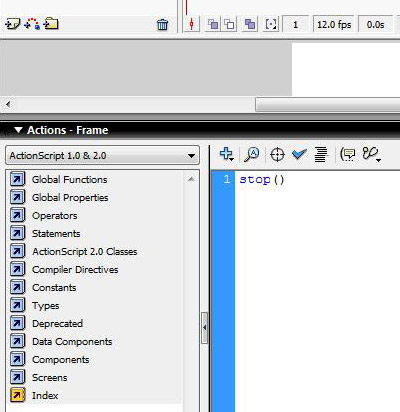
So, you’re probably wondering to yourself “Why did I create blank key frames?”. Well, this is because in those blank key frames, we’re going to insert your first code in all of them! The code we’re going to use in the movie clip will make sure the movie won’t move to the next frame until we tell it to when we insert it to the stage. OK, select the first frame in the new layer and press F9. You have just opened the Actionscript window. This is where we’re going to put the following code into.
.stop()
So simple, but yet effective. This little code will prevent the movie timeline to move to the next frame. Insert this code for all five of the blank key frames. If you did it correctly, your blank frames should look like the picture above.
11) Now we “animate”
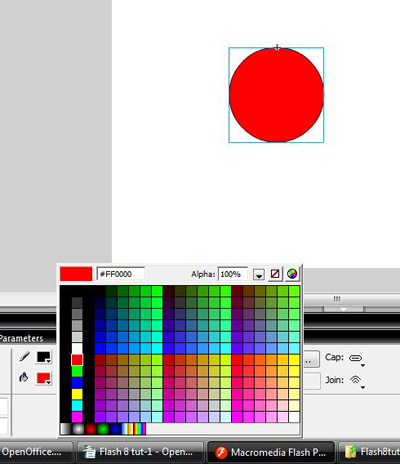
The next thing we’re going to do is to “animate” our “character”. Of course, when we mean “animate” in this tutorial, we’re simply going to change the color of the shape whenever it moves. Leave the color of the shape in the first frame alone. This will be our rest position. Select the second frame on the old frame and change the color of the shape. Repeat this for all the frames on that layer.
Note: Remember the frame number and the color of the shape in that frame number! This is important in the last step!
12) Last step
Okay, this is the last but crucial step. Now we’re going to code the movement of the shape. But first, exit the movie clip’s timeline by clicking on scene 1.
13) Finally, coding time
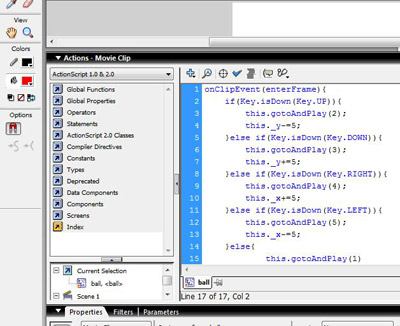
Now click on the shape, and press F9. You’re now going to enter some coding which will control the movie clip. Here’s the code…
onClipEvent(enterFrame){
if(Key.isDown(Key.UP)){
this.gotoAndPlay(2);
this._y-=5;
}else if(Key.isDown(Key.DOWN)){
this.gotoAndPlay(3);
this._y+=5;
}else if(Key.isDown(Key.RIGHT)){
this.gotoAndPlay(4);
this._x+=5;
}else if(Key.isDown(Key.LEFT)){
this.gotoAndPlay(5);
this._x-=5;
}else{
this.gotoAndPlay(1)
}
}
Press control and enter to test your character’s movement! Now let me explain the coding a bit…
OnClipEvent(enterFrame) is a statement that tells flash that the following code will be repeated multiple times, or at least once it enters this frame.
if(Key.isDown(Key.UP)) tells flash to execute the following commands when the Up key is pressed.
this.gotoAndPlay(2) instructs flash to move to the movie clip’s timeline at frame 2.
this._y-=5; means that the movie clip will move up.
Keep in mind that when we want to move up, we subtract Y and we add Y to make it move down. For X, if we want to move it right, we add X, if we want to move it left, then we subtract it.
You basically should get the hang of it from here. The only difference is that in each statement, either the frame number changes or the position of the movie clip changes.
Well, that’s it for our first flash tutorial on this site. If you followed everything correctly, you should get something like the following this: Click here to play.
If yours didn’t work as expected, then just review through the steps above to see where you have left out or done wrong. Get the FLA file here.
I’ll try to write more flash tutorials in the near future. Stay tuned.